 ×

EmailHeatmaps and Benchmark Email integration is here!
How to setup integration
×How to setup integration
Here is each step with screenshots.
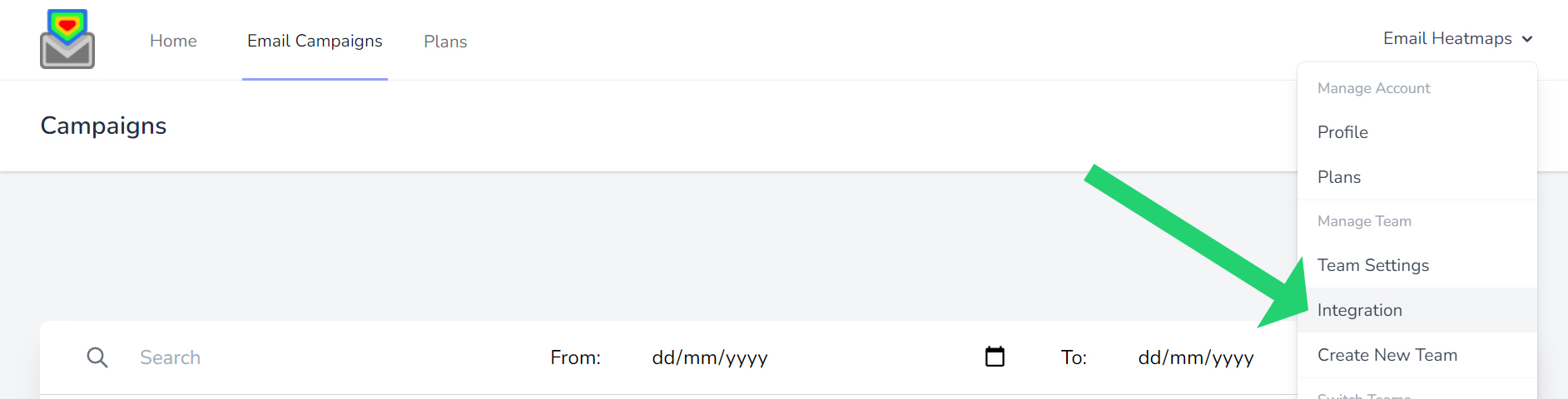
Login and click your name top right, then select “Integration”.
Scroll down to Benchmark Email and enter your API.

Paste your Benchmark Email API key into the box and click Connect.
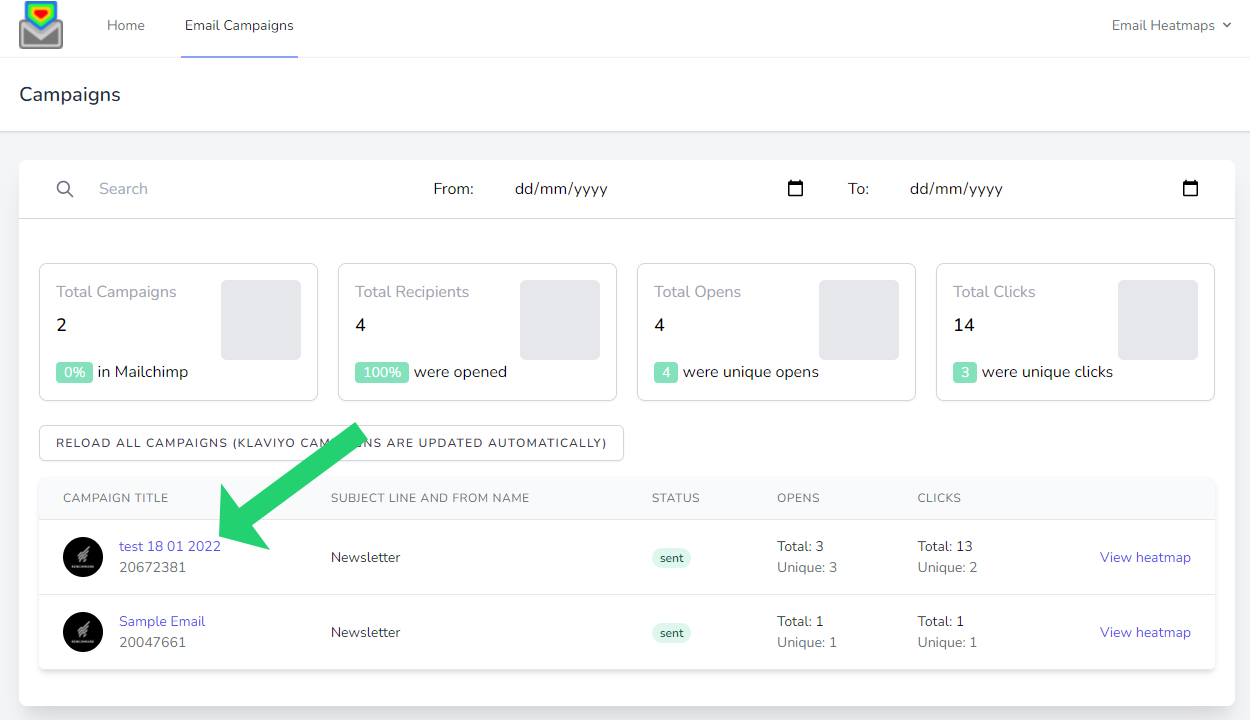
Depending how many campaigns are in your account, you can find all your campaigns if click “Email Campaigns” in the menu bar. You will need to choose the correct plan to display to total email campaigns in your account.

Then all your campaigns will display here:
Keep this page open in another tab, so you can copy the key straight into Email Heatmaps.
After you connect, your sent Benchmark Email campaigns arrive with the click count for every link. The heatmap lays those counts over the email itself, so you can tell at a glance which part of the message did the work. Mouse over a link to read its exact number.
From there you can share a public link to the report on any plan. On the Professional and Unlimited plans you can also compare two campaigns side by side. Using more than one email platform? See all our integrations.
Yes. Benchmark Email lists it under API Key, and the button to make one says Generate API Token. Copy that value into Email Heatmaps.
No. We read your sent emails and the clicks on their links. We do not access your contacts or any personal data.
That depends on your plan. Starter shows your last 10 sent campaigns, Professional your last 100 and Unlimited all of them.
Yes. Every plan includes a public report link you can send to anyone.
Simply choose your plan, open an account and connect your email marketing platform!

Select your plan that is based on total campaigns sent in your email platform you wish to report on. (not monthly sends – we pull all your sent campaigns but you select how many you wish to view)

Enter your details, credit card for a 14-day free trial (no notice period and cancel at any time!)

Simply connect EmailHeatmaps to your email marketing platform via API key or Mailchimp direct login.