How do I use the Comparison tool?
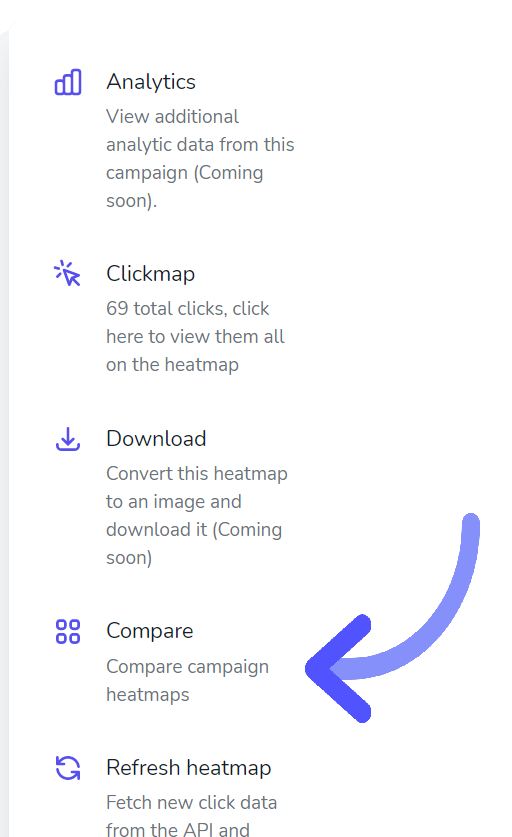
Once you have registered with Email Heatmaps, connect your email marketing platform. Then, simply choose a campaign you’ve already sent from your list of campaigns, click “view heatmap” then, from the left-hand menu select “compare”. A pop-up will appear. Choose the other campaign you wish to compare. Enter the campaign name in the search box and see the results.
How do I connect a Mailchimp account?
We use oAuth to connect and login to your Mailchimp account. Once you’ve created your Email Heatmaps account, log into it, then click your name (top right), click “API keys” then click “connect to Mailchimp”. This will then open Mailchimp and you will need to login and select “connect to your account”.
How do I connect my ActiveCampaign account?
ActiveCampaign has written a guide on how to find your API key and API URL. Please visit here for the instructions.
How do I connect my GetResponse account?
We use oAuth to connect and login to your GetResponse account. Once you’ve created your Email Heatmaps account, log into it, then click your name (top right), click “API keys”, then click “connect to GetResponse”. This will then open GetResponse and you will need to login and connect to your account.
How do I search for a campaign?
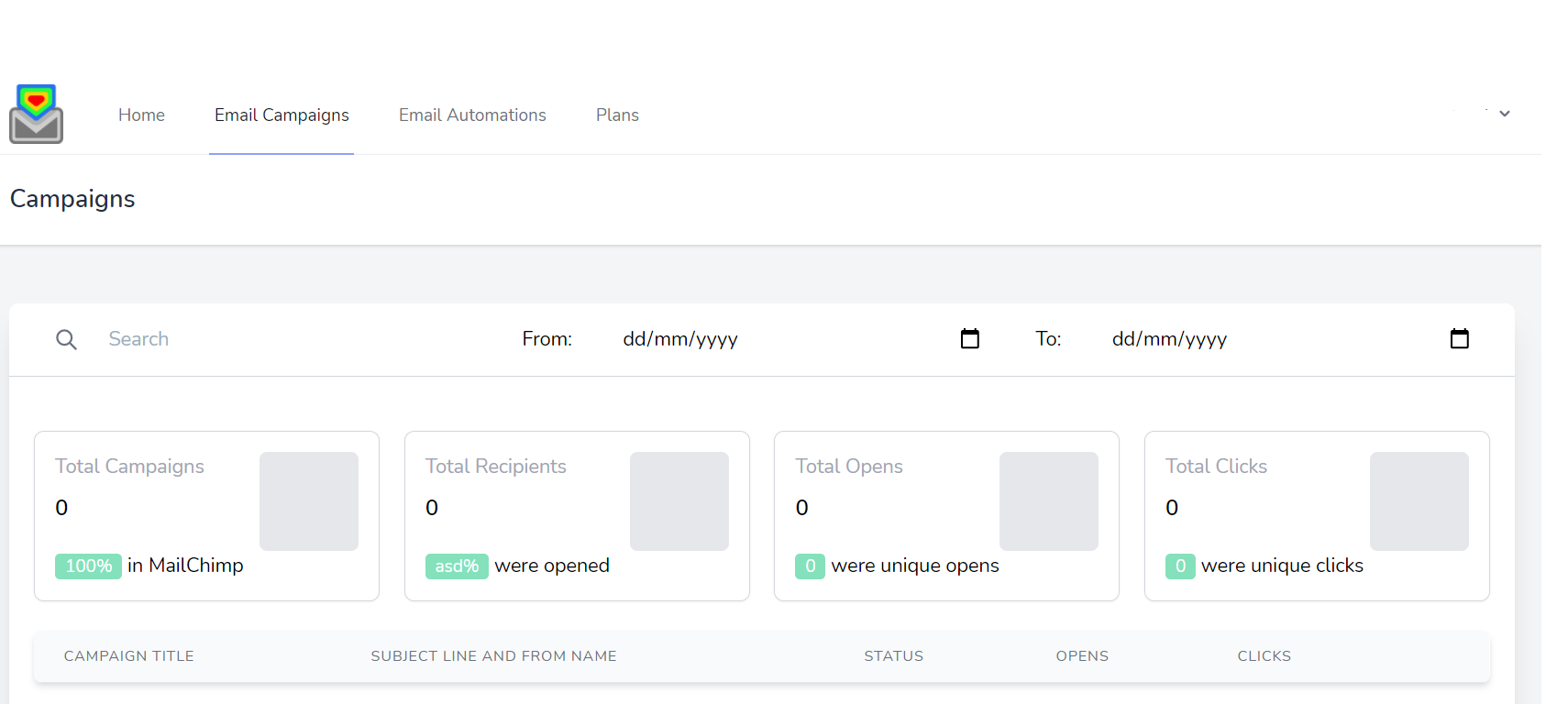
Once logged in and you’ve connected your email platform, you can search for a campaign or automation using either search box box the campaigns block or top right of the campaigns block using the date filter. See below screenshot:
How do I display clicks on the heatmap?
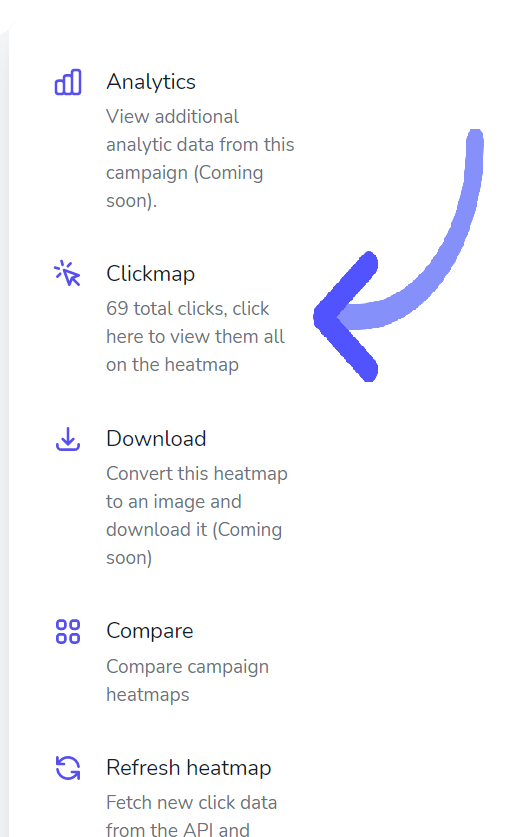
Click a campaign to create an Email Heatmap, then on the left-hand side choose “click data”. See below for screenshot:
Can I see the clicks of a specific URL?
Yes, once in an Email Heatmap, select “click data” from the left-hand menu as above, then simply hover over the link you wish to see. You can move your mouse around to see any link.
Email heatmaps are displaying out of alignment. Why is this?
Email Heatmaps are created immediately and will need a few seconds to load. If this happens, please press refresh on the left-hand menu.
My campaigns aren’t showing in campaigns or automations?
Sometimes Get Response tokens expire and you will need to refresh the connection. To do this, simply click refresh from the left hand menu.
How can I cancel my account?
We’ll be sorry to see you leave but if you wish to cancel your account. You will need to login to your account, click “my account” top right, click “billing portal”, then cancel your subscription. Subscriptions managed securely pay Stripe and you will need to cancel from there.
Can I suggest features I would like to see in emailheatmaps.com?
Email heatmaps is built by email users, for email marketing users and we love to improve our service and features. Please send any suggestion you have via our contact form here.


